

Power Automate Desktop excels in virtual machine automation, whether for attended development or unattended cloud-triggered flows. This guide covers installation on any VM plus Azure-specific setup, communication architecture, and network requirements. Perfect for enterprise RPA deployments.
Target Windows 10/11 Pro/Enterprise or Server 2016/2019/2022/2025 VMs. Admin rights needed for MSI installer. Agent requires 300 MB storage + 500 MB RAM per user/session. Close any active RDP/Citrix session before installing the desktop app. Virtual desktop automation works with Windows RDP, RemoteApp, Citrix Desktop, and Citrix Virtual Apps — not Windows Home editions or Microsoft Store PAD version. (Windows 10 Home and Windows 11 Home can run PAD for creating desktop flows and monitoring them in the portal — they just can’t trigger desktop flows from the cloud)
Prerequisites
Core Installation Steps
- Download Power Automate from Microsoft Learn:
Setup.Microsoft.PowerAutomate.exe. - Run installer on the VM as administrator.
- Select components:
- Accept license → Install. .NET 8 runtime auto-downloads if needed.
- Launch from Start menu, sign in with Power Platform account.
Virtual Desktop Agent (RDP/Citrix)
For UI automation inside remote sessions, install Power Automate agent for virtual desktops on the VM:
- Download agent MSI from Microsoft.
- Copy to VM if accessing remotely.
- Run as administrator → agent appears in system tray.
Communication flow: Designer (endpoint) ↔ Agent (VM) over RDP/Citrix virtual channel → UI automation executes. Initial handshake + version sync occurs automatically.
Communication Architecture
textEndpoint (PAD Designer) ← RDP/Citrix Channel → VM (PAD Agent + Runtime)
                              ↓
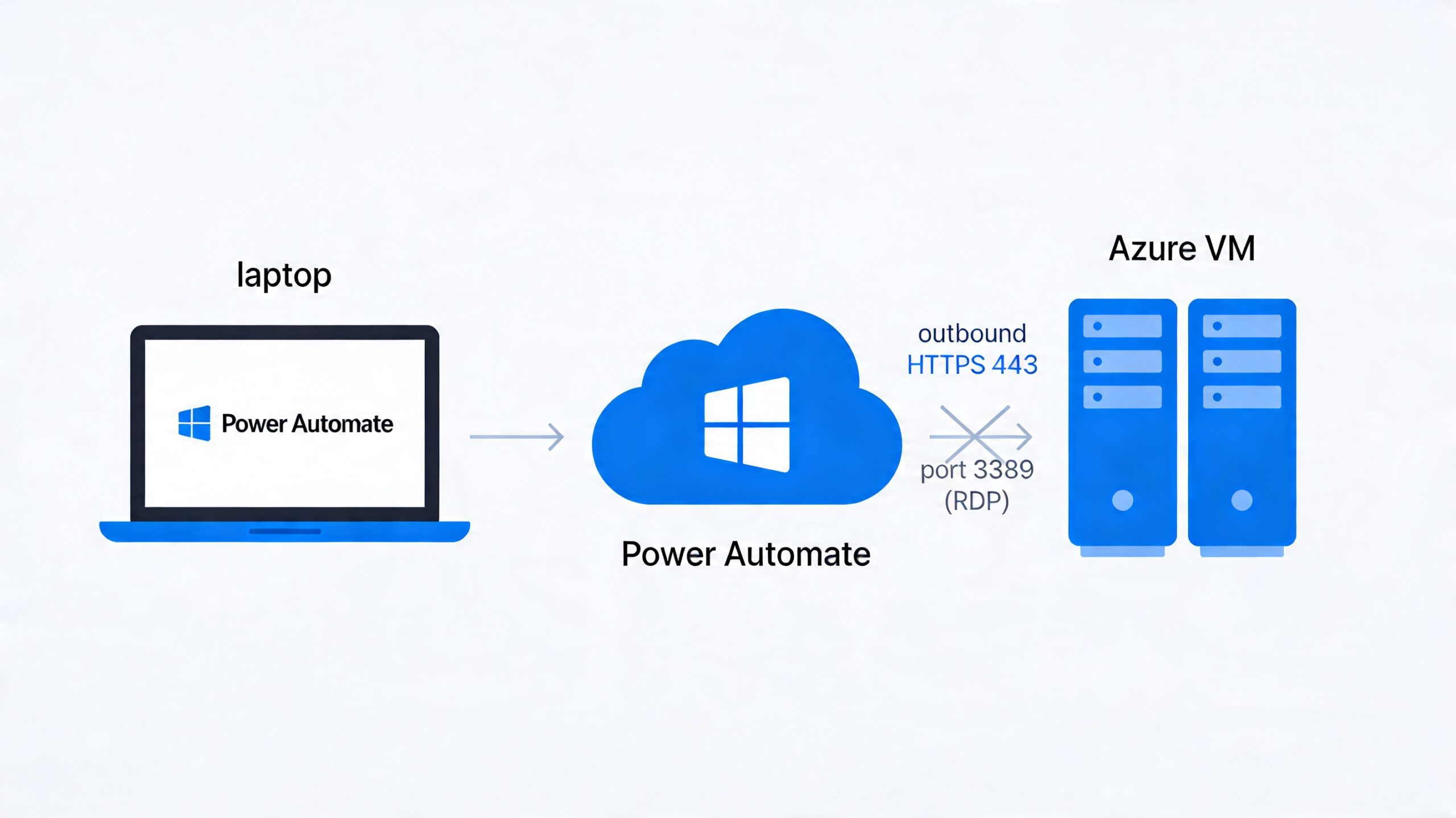
                    Cloud Flow triggers via HTTPS 443
- Endpoint ↔ VM: Uses existing RDP/Citrix session channel (
PAD\CONTROLvirtual channel for Citrix). No separate TCP listener. - VM ↔ Cloud: Machine runtime polls Power Platform over outbound HTTPS 443.
- Handshake sequence: Connect → Version sync → UI automation phase.
Azure VM Setup
1. Create VM
textPortal.azure.com → Virtual machines → Create
- Image: Windows 11 Pro/Server 2022
- Size: D4s v5 (4 vCPU/16 GB min) (not official recommendation, but tip after several usecases :-))
- Networking: Open RDP 3389 temporarily
2. Initial Access & Install
- RDP to VM (TCP 3389)
- Install PAD + Machine runtime + Agent
- Sign in → machine auto-registers in
make.powerautomate.com > Machines - Disconnect RDP completely
3. Network Configuration
| Direction | Port/Protocol | Purpose | After Setup |
|---|---|---|---|
| Inbound | TCP 3389 | Admin access | Close for security |
| Outbound | TCP 443 | Power Platform | Always open |
| Inbound | None | PAD agent | None needed |
Key: Port 3389 NOT required for remote flow execution. Unattended flows run headless via cloud service → machine runtime polling.
4. Test Unattended Flow
textCloud Flow → "Run a flow built with Power Automate for desktop"
→ Select registered Azure VM machine → Executes without RDP
Verification Checklist
- PAD version matches agent version
- Machine shows “Connected” in Power Automate portal
- Agent running in VM system tray (or
PAD.RDP.ControlAgent.exe) - Simple flow tests: Notepad open/save
- Cloud flow triggers VM flow headless (no RDP)
Logs: C:\ProgramData\Microsoft\Power Automate Desktop\Logs\
Common Issues & Fixes
Cost Optimization
Azure VMs auto-shutdown via scheduled events or cloud flows. D4s v5 (~$0.20/hour) works for most RPA; scale with machine groups for production.
This setup delivers production-grade RPA on VMs. Problem with this setup is, it Requires a disconnected RDP/Citrix session to be active. So a logged in user that has his session disconnected. So Power Automate Desktop runs unattended flows without an active RDP session using its machine runtime, which Power Automate service connects to directly over HTTPS. Microsoft automatically creates a temporary, managed Windows user session (locked screen) when triggered from a cloud flow — no manual RDP needed.
How to implement unattended (no disconnected RDP session) mode
No open RDP port 3389 required — it’s all outbound HTTPS from VM to Power Platform. Users must be signed out/locked beforehand.